ShareX Hotkeys Not Working: Diagnosis and Fixes
Hotkey problems almost always come down to registration conflicts or another program owning the key.
ShareX provides powerful and customizable
the ShareX hotkeys guidefor various capture tasks and tools. When these hotkeys stop working as expected, it can disrupt your workflow. This guide helps you diagnose common causes for ShareX hotkeys not working and provides concrete steps to resolve them, ensuring your ShareX screenshot shortcuts function reliably on your Windows system. Many hotkey issues stem from conflicts with other applications or Windows itself, or from specific system states. Understanding how ShareX interacts with your operating system and other software is key to troubleshooting these problems effectively.
Read the Hotkey List First
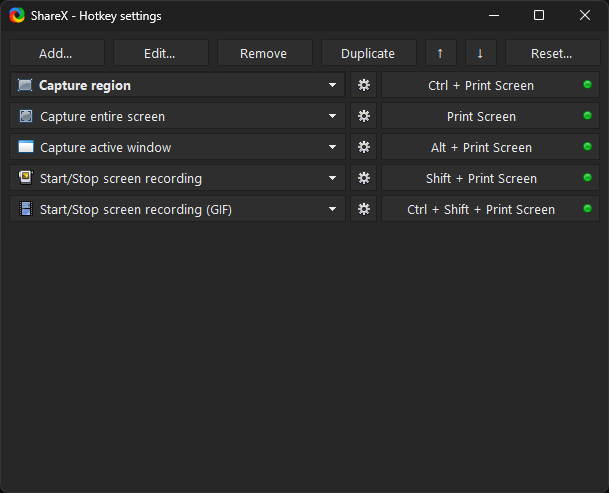
Before diving into complex troubleshooting, always verify that the hotkey you are trying to use is actually configured in ShareX and assigned to the task you expect. It's common for hotkeys to be accidentally changed, or for new hotkeys to be set up incorrectly. To check your ShareX hotkey configurations:
- Open the main ShareX window.
- In the left-hand menu, click on Hotkey settings.
- This window displays a list of all configured hotkeys, their assigned keyboard combinations, and the actions they trigger.
- Carefully review the list. Ensure the hotkey you're trying to use is present and correctly mapped to the desired function (e.g., "Capture region," "Capture active window," "Start/stop screen recording").
- If a hotkey is missing or incorrect, you can click Add to create a new one, or select an existing hotkey and click Edit to modify its properties.
- When editing, press the desired key combination in the "Hotkey" field. Select the appropriate task from the "Task" dropdown menu.
- Click OK to save any changes.
- After making changes, it's a good practice to close and reopen ShareX, or at least exit the Hotkey settings window, to ensure the new settings are fully applied.
If you've confirmed your hotkeys are set up correctly in ShareX but still aren't working, proceed to the next troubleshooting steps. This initial check prevents you from spending time on more advanced solutions when the problem is a simple misconfiguration. For more detailed information on configuring these shortcuts, refer to the
keybind documentation.
Another Program Owns the Key
One of the most frequent reasons for ShareX hotkeys not working is a conflict with another application. Many programs use global hotkeys that can override or interfere with ShareX's shortcuts. This is especially true for communication apps, gaming overlays, and other utilities that run in the background. To diagnose and resolve hotkey conflicts:
- Identify potential conflicting applications: Think about what other programs are running on your system, especially those that might use global shortcuts. Common culprits include:
- Gaming platforms (Steam, Epic Games Launcher, Discord overlays)
- Communication apps (Discord, Zoom, Microsoft Teams)
- Other screen capture tools or snipping tools
- Clipboard managers
- Multimedia players or streaming software
- Temporarily close other applications: The quickest way to test for a conflict is to close all other non-essential applications running in the background. You can do this by right-clicking their icons in the system tray (near the clock) and selecting "Exit" or "Quit."
- Test ShareX hotkeys: After closing other applications, try your ShareX hotkeys again.
- If they work, then one of the applications you closed was the culprit.
- If they still don't work, the issue lies elsewhere, and you can reopen the other applications.
- Isolate the conflicting application: If the hotkeys started working, reopen the applications one by one, testing ShareX hotkeys after each one. The application that causes ShareX hotkeys to stop working again is the conflicting program.
- Resolve the conflict: Once identified, you have a few options:
- Change the hotkey in the conflicting application: Many programs allow you to customize their global hotkeys. Check the settings of the conflicting application and assign a different key combination for its conflicting function.
- Change the hotkey in ShareX: If the conflicting application's hotkey cannot be changed, or if you prefer, you can change the ShareX hotkey instead. Go to Hotkey settings in ShareX, select the problematic hotkey, click Edit, and choose a new, unique key combination.
- Disable the conflicting application's hotkey: Some applications allow you to disable specific hotkeys entirely.
- Run the conflicting application only when needed: As a last resort, you might choose to only run the conflicting application when you specifically need it, closing it when you want to use ShareX hotkeys.
This systematic approach helps pinpoint the exact cause of the conflict and allows you to choose the most suitable resolution for your workflow.
Print Screen Is Taken by Windows
The Print Screen (PrtSc) key is a common choice for screen capture, and ShareX allows you to assign it as a hotkey. However, Windows itself has built-in functionality tied to the PrtSc key, which can interfere with ShareX. There are two primary ways Windows can "take over" the Print Screen key:
Windows 10/11 Snipping Tool Integration
In Windows 10 and Windows 11, there's an option to make the PrtSc key open the Snipping Tool (or Snip & Sketch). If this setting is enabled, Windows will intercept the key press before ShareX can register it. To check and disable this setting:
- Open Windows Settings. You can do this by pressing
Windows key + I. - Navigate to Accessibility.
- Scroll down and click on Keyboard.
- Find the option labeled "Use the Print Screen key to open screen snipping" (or similar wording).
- Ensure this toggle is set to Off.
After disabling this setting, try your ShareX PrtSc hotkey again.
OneDrive Sync and Screenshot Auto-Save
OneDrive, Microsoft's cloud storage service, also has a feature that can capture screenshots using the PrtSc key and automatically save them to your OneDrive folder. This can prevent ShareX from using the key or cause unexpected behavior. To check and disable this OneDrive feature:
- Right-click the OneDrive cloud icon in your system tray (near the clock).
- Click on Settings.
- Go to the Backup tab.
- Under the "Screenshots" section, uncheck the box that says "Automatically save screenshots I capture to OneDrive."
- Click OK to save changes.
Once both of these Windows-level interferences are addressed, your Print Screen hotkey should function correctly with ShareX, assuming no other application is causing a conflict. If you are experiencing
captures that produce nothing, this could be a contributing factor.
Nothing Works in Elevated Windows
When an application is run with administrator privileges (e.g., "Run as administrator"), it operates in an "elevated" state. By default, applications running in a normal user context cannot send hotkey commands to an elevated application. This is a security feature in Windows. If ShareX is running without administrator privileges, but you are trying to capture a window or interact with an application that *is* running as an administrator (e.g., Task Manager, Device Manager, some installers, or certain games), your ShareX hotkeys will not work when that elevated window is in focus. To resolve this, you must run ShareX with administrator privileges as well. To always run ShareX as an administrator:
- Locate the ShareX shortcut on your desktop, in the Start Menu, or the
ShareX.exefile in its installation directory (typicallyC:\Program Files\ShareX). - Right-click on the ShareX executable or shortcut.
- Select Properties.
- Go to the Compatibility tab.
- Check the box labeled "Run this program as an administrator."
- Click Apply, then OK.
- Close ShareX completely and then restart it using the modified shortcut or executable.
Now, ShareX will always launch with administrator privileges, allowing its hotkeys to function correctly even when interacting with other elevated applications. Be aware that running any application as an administrator has security implications, as it grants the application more system access. For most users, running ShareX as administrator is a common and safe practice if you frequently interact with elevated windows.
Hotkeys Stop After Sleep or an Update
Sometimes, ShareX hotkeys might stop responding after your computer wakes from sleep or hibernation, or following a Windows update. This can be due to drivers temporarily losing their state, background processes not resuming correctly, or changes introduced by an update. Here's how to troubleshoot these scenarios:
After Sleep/Hibernation:
- Restart ShareX: The simplest fix is often to completely exit ShareX and then restart it.
- Right-click the ShareX icon in the system tray (near the clock).
- Select Exit.
- Then, launch ShareX again from your desktop shortcut or Start Menu.
- Check for system tray icon: Sometimes, ShareX might appear to be running, but its system tray icon is missing or unresponsive. If you can't right-click it, ShareX might not be running correctly. Restarting it is the best course of action.
After a Windows Update:
Windows updates, especially major feature updates, can sometimes reset system settings, re-enable conflicting Windows features (like the Print Screen key for Snipping Tool), or interfere with how applications register hotkeys.
- Revisit Windows Print Screen settings: As detailed in the "Print Screen Is Taken by Windows" section, check if Windows has re-enabled the "Use the Print Screen key to open screen snipping" option in Accessibility settings or the OneDrive screenshot saving feature.
- Check for new conflicting applications: A Windows update might install or activate new background services or applications that introduce new hotkey conflicts. Review your running processes and consider temporarily disabling non-essential background applications.
- Restart your computer: A full system restart can often resolve lingering issues after an update by ensuring all drivers and services are reinitialized correctly.
- Reinstall ShareX (as a last resort): If hotkeys remain unresponsive after an update and other troubleshooting fails, a clean reinstallation of ShareX might resolve the issue. Before reinstalling, ensure you back up your ShareX settings overview to preserve your custom configurations and history. You can do this by going to Application settings > Configuration > Backup now.
These steps help address transient issues that can occur due to system state changes or updates.
Fullscreen Games and Exclusive Mode
Many modern games, especially those running in "exclusive fullscreen" mode, can prevent global hotkeys from being registered by background applications like ShareX. In exclusive fullscreen, the game takes direct control of the display and input, bypassing the Windows Desktop Manager (DWM) and often ignoring input from other applications. If your ShareX hotkeys are not working specifically when you are in a game, this is a very likely cause. Here are strategies to address hotkey issues in games:
- Use Borderless Fullscreen Mode (if available): Many games offer a "Borderless Window" or "Windowed Fullscreen" mode in their graphics settings. This mode typically allows Windows to maintain control over the desktop and input, which means ShareX hotkeys are more likely to work. This is often the best solution for capturing in games.
- Switch to Windowed Mode: If borderless fullscreen isn't an option, running the game in standard windowed mode will almost certainly allow ShareX hotkeys to function. This might not be ideal for performance or immersion, but it's a reliable workaround.
- Use Game-Specific Overlay Tools: Some games or gaming platforms (like Steam, NVIDIA GeForce Experience, Xbox Game Bar) have their own built-in screenshot or recording tools that work within exclusive fullscreen mode. While not ShareX, these can serve as an alternative for capturing in those specific game environments.
- Consider Game DVR (Windows Game Bar): Windows has a built-in Game Bar (
Windows key + G) with Game DVR features. This can capture screenshots and record video in many games, even in exclusive fullscreen. While it won't use your ShareX workflow, it's an option for capturing content from games. - Adjust Hotkeys to Less Common Combinations: Some games have their own internal hotkeys that might conflict even in windowed modes. If you suspect this, try assigning less common hotkey combinations in ShareX that are unlikely to be used by the game (e.g., combinations involving
Alt,Shift, and function keys likeF11orF12, or specific number pad keys).
It's important to understand that in exclusive fullscreen environments, the operating system's ability to manage global hotkeys is intentionally limited for performance and security reasons. ShareX, like most third-party capture tools, respects these limitations.
Rebuilding Your Hotkey Set Cleanly
In rare cases, your ShareX hotkey configuration file might become corrupted, or you might have accumulated many conflicting hotkeys over time. A clean rebuild of your hotkey set can resolve these deeper issues. This process involves resetting your hotkey settings to default and then re-adding only the hotkeys you need. To perform a clean rebuild of your hotkey set:
- Backup your ShareX configuration: Before making significant changes, it's always wise to back up your entire ShareX configuration.
- Open ShareX.
- Go to Application settings.
- Click on the Configuration tab.
- Click Backup now. Save the backup file to a safe location.
- Remove all existing hotkeys:
- Open Hotkey settings in ShareX.
- Select each hotkey entry in the list one by one.
- Click the Remove button for each entry. Repeat until the list is empty.
- Click OK to save the empty hotkey list.
- Restart ShareX: Completely exit ShareX and restart it. This ensures the old hotkey settings are fully cleared from memory.
- Add essential hotkeys one by one:
- Open Hotkey settings again.
- Click Add.
- Configure your most frequently used hotkey (e.g., "Capture region"). Press the desired key combination and select the task.
- Click OK.
- Test this single hotkey immediately to ensure it works.
- If it works, repeat the process for your next essential hotkey, testing after each addition.
- Be mindful of conflicts: As you re-add hotkeys, remember the advice from the "Another Program Owns the Key" section. Try to choose unique key combinations that are less likely to be used by other applications.
This methodical approach helps you identify if a specific hotkey combination or a corrupted entry was causing the problem. By adding them back one at a time, you can quickly pinpoint any new conflicts or issues that arise.
Frequently Asked Questions
Why do my ShareX hotkeys only work sometimes?
Intermittent hotkey functionality often points to a conflict with another application that is not always running or active. It could also be related to specific Windows contexts, such as an elevated application being in focus, or the system transitioning to/from sleep mode. Review the sections on "Another Program Owns the Key" and "Nothing Works in Elevated Windows" for troubleshooting.
Can I use my mouse buttons as ShareX hotkeys?
Yes, ShareX supports using extra mouse buttons (Mouse 3, Mouse 4, etc.) as part of your hotkey combinations. When setting a hotkey in ShareX's Hotkey settings, simply press the desired mouse button along with any keyboard modifiers (like Shift or Ctrl) to assign it. Ensure your mouse drivers are not intercepting these buttons for other functions.
I set a hotkey, but nothing happens when I press it.
First, verify the hotkey is correctly configured in ShareX's Hotkey settings and assigned to a task. If it is, check for conflicts with other programs or Windows settings, especially the Print Screen key if you are using it. Ensure ShareX is running and its icon is visible in the system tray.
Do I need to restart ShareX after changing hotkey settings?
While ShareX typically applies hotkey changes immediately after you click "OK" in the Hotkey settings window, a full restart of ShareX can help ensure all changes are fully registered and resolve any lingering issues, especially after making multiple modifications or troubleshooting. It's a good practice if you encounter continued problems.
Get ShareX for Windows
ShareX is free and open source. Install it, then come back and try the steps above.
Download ShareX